

CGIB HR On Call Program Resources
Welcome to HR On Call+! You’re ready to start offering complimentary HR support to your clients.
Follow the 3 Getting Started steps below to introduce the program and encourage client enrolment. You’ll find ready-to-use emails, website banners and everything you need to promote the benefit.
Further down, we’ll walk you through managing your Program, including client changes, licence availability and renewals.
Need a refresher? Visit the CGIB HR On Call+ Program page for program details, pricing and terms.
Getting Started: 3 Simple Steps
We emailed you a private link to your Live Program Dashboard (example) in your welcome email after you signed up. For the best viewing experience, adjust the Excel zoom to 50% using the control in the bottom-right corner.
We strongly recommend you bookmark this page. It’s your go-to place for everything related to your HR On Call+ Program, including:
- Your Program Code and Client-Facing Page link
- Your licence package, coverage dates and next payment renewal
- Which clients are enrolled and how many licences are available
- HR On Call advisory inquiries and Hands-On HR Services usage
- Your Next Client Change Date
Important
Your Program Code is exclusively for your active clients. Share it directly with them by email or other private communication. Never publish it on your website, social media or other public-facing materials.
Additional Details
Additional details about your Dashboard are discussed below in “Check & understand your Live Program Dashboard“.
Adding HR On Call+ to your website is a great way to showcase the extra value you provide to existing clients and give prospective clients another reason to choose your firm.
We’ve created 2 promotional banners for you to choose from.
Click to preview. Choose the one you prefer for your website.
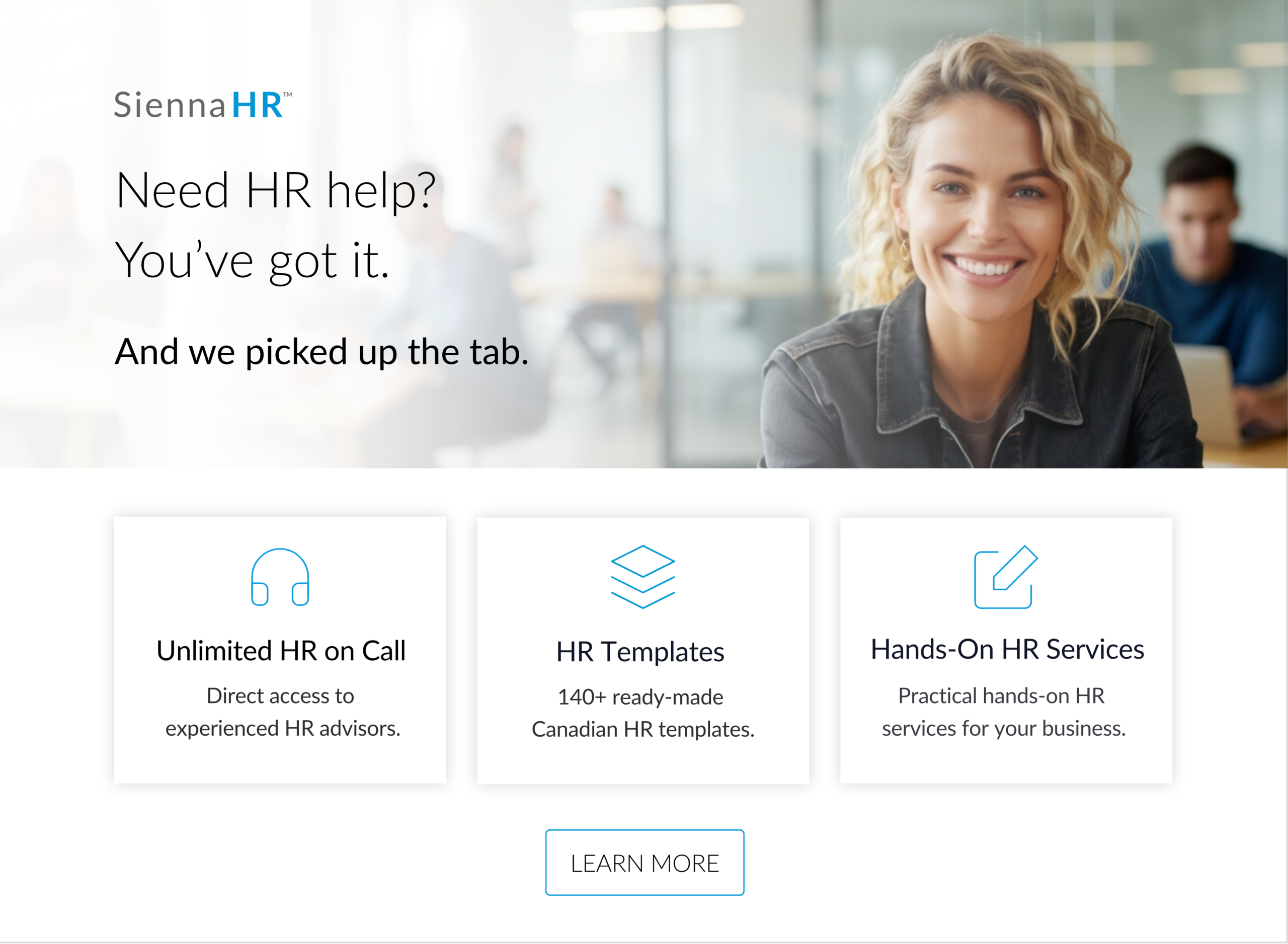
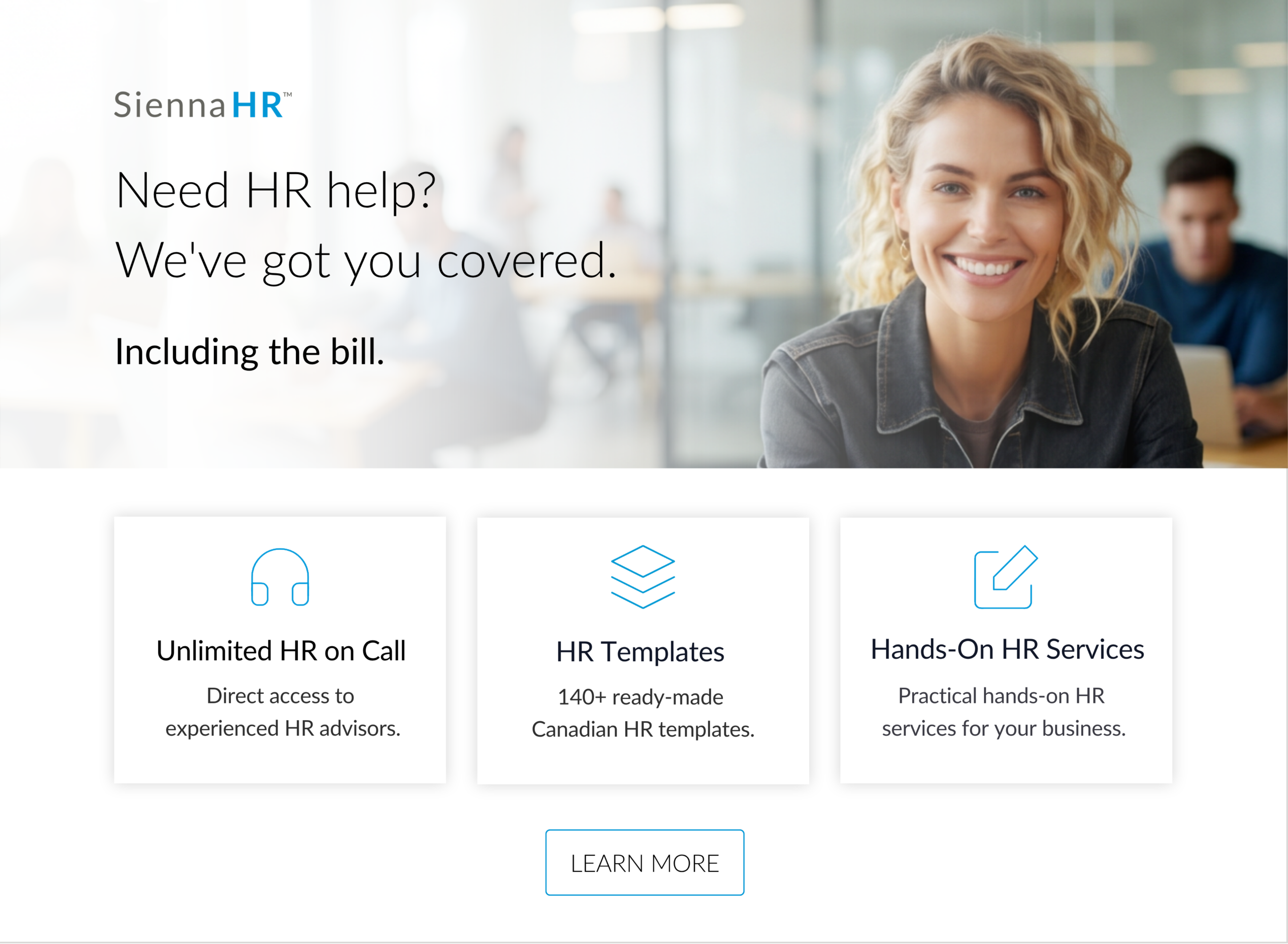
Here’s how to set it up:
- Create a prominent page on your website, ideally accessible from your main menu. Suggested page title: Free HR for Clients
- Download your preferred banner and have your webmaster place it on the page.
- Make the banner clickable, linking it to your own Client-Facing Page on Sienna HR. You’ll find the link in your Live Program Dashboard and welcome email.
That’s it! Your banner promotes the benefit, while your Client-Facing Page explains the program and handles enrolment and HR services access.
We ask that use our approved banners rather than creating your own promotional materials. You’re welcome to add a short introduction below the banner.
Can I promote HR On Call+ to prospective clients?
Absolutely! Mention it in sales conversations, proposals and presentations. Prospects can visit your Client-Facing Page to learn about the benefit, but enrolment and access are reserved for your active clients.
Once they become a client, share your Program Code privately so they can enrol.
You’re ready to spread the word! And sign up your clients
Be Selective About Who You Invite
If you’ve purchased a smaller licence package, or your client count exceeds our 30-licence cap, prioritize clients you expect to remain with your firm and who are likely to benefit from HR support.
Each client you enrol occupies a licence that’s committed until the end of your current 6-month Program term, even if the client leaves your firm. You can’t reassign that licence to another client until the beginning of your next 6-month term.
Refer to Remove a client who has left your firm and Switch out clients who are still with your firm below.
Decide How Many People Each Client Can Register
The program allows clients to enrol more than 1 Registered User. However, each Registered User occupies 1 of your licences, so multiple registrations from the same business reduce the number of clients you can cover.
Before sending your invitation email, decide whether you want to limit registration to 1 person per client.
If so, add this sentence to your email:
Please designate 1 person from your business to register for HR On Call+.
Send the Email
We’ve prepared a suggested email below you can personalize and send to your existing clients to introduce their new HR benefit.
Before sending, we suggest:
- Inserting the promotional banner image you chose in STEP 2. at the top of your email and hyperlink it to your dedicated Client-Facing Page. This will add visual interest to your email and most of what you want your clients to know will be in this banner.
- Hyperlink the banner image to your Client-Facing Page.
- Send the email directly to all or selected active clients.
Suggested Email
Subject: Free HR Support for Our Clients. We’ve Picked Up the Tab!
Hi [First Name],
Good news! We’ve partnered with Sienna HR to give our clients access to HR On Call+, and we’re covering the cost.
Whether you’re dealing with a tricky employee situation, need an HR template, or could use some hands-on help, you’ll have experienced Canadian HR professionals to turn to.
There’s no cost to you, and no credit card required.
Space is limited! Complimentary HR On Call+ registrations are available on a first-come, first-served basis, so we encourage you to sign up early.
Getting started is easy:
- Visit [ URL of Your Client-Facing Page].
- Register using your exclusive Program Code: [PROGRAM CODE].
- Bookmark the page so you can return whenever you need HR help.
And don’t worry about sales pitches. Sienna HR won’t bombard you with sales calls or upselling. You’ll only receive helpful monthly HR updates and quarterly reminders to make use of your benefit.
We’re always looking for ways to bring more value to our clients, and we hope you’ll take advantage of this one.
<You>
Want to register clients on their behalf?
Some clients will appreciate the benefit but never get around to registering. You can offer to take care of it for them.
Before registering a client, obtain and retain written authorization from someone authorized to represent their business, allowing you to register and accept the HROC Client Agreement on their behalf.
Sienna will email the designated representative their submitted registration details and a copy of the Agreement. They must notify Sienna within 24 hours if the registration was unauthorized, any details are inaccurate, or they don’t accept the Agreement.
Can you use HR On Call+ for your own firm?
Absolutely! Register your own business through your Client-Facing Page, using the same process as your clients.
Your firm counts as 1 licence and receives the same HR benefits for its own employees.
Managing Your Program
Your Program runs in consecutive 6-month periods that starts on your enrolment date. You can pay for 6 months at a time or prepay for 12 months and save 5%.
If you prepay for 12 months, you simply receive 2 consecutive 6-month coverage periods.
Your Live Program Dashboard is your go-to place for managing your HR On Call+ program and should be checked regularly. It shows:
- Your Program Code and Client-Facing Page link
- Your licence package, coverage dates and next payment renewal
- Which clients are enrolled and how many licences are available
- HR On Call advisory inquiries and Hands-On HR Services usage
Downloading your Dashboard in Excel
If you prefer, you can download your spreadsheet at any time so you can filter information as you like. Note that we recommend that you return to your Live Dashboard link often to see your real-time data.
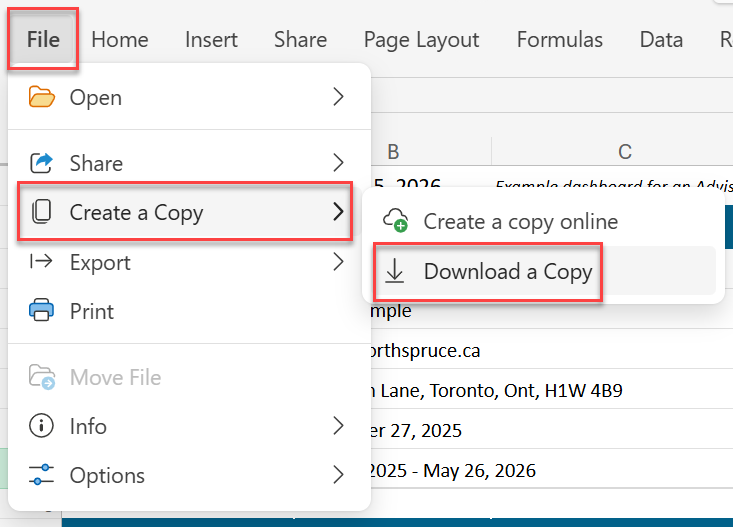
Here’s how to download your Dashboard: Click File -> Create a Copy -> Download a Copy.
Save the file in a secure folder as it includes sensitive client information.
Understanding your Dashboard
Your Program
Next Payment Renewal Date
The date your paid coverage is due to renew. Your renewal invoice must show as Paid at least 5 business days beforehand to ensure uninterrupted coverage. If you’ve prepaid for 12 months, this date may be later than your Next Client Change Date.
Licences Available
Licences available now.
Next Client Change Date
The start of your next 6-month Program Term, when scheduled client removals take effect and their licences become available for reassignment.
Licence Release Pending
The sum of clients shown as “Switch-Out Scheduled” and “Access Ended – Pending Release” in the Licence Status column. These licences will be available at the beginning of your next 6-month term.
Projected Licences Available Next Term
Your currently available licences, plus those scheduled for release at the start of your next 6-month Program Term, based on current enrolments.
Licence Status
Access Ended – Release Pending
The client has left your firm and their HR On Call+ access has ended. Their licence remains committed until your Next Client Change Date.
Switch-Out Scheduled
You’ve requested the removal of a client who is still with your firm to free up a licence for other clients during the following 6-month term. Their HR On Call+ access continues until your next Program Term begins. Their licence remains committed until your Next Client Change Date.
Removed
The client’s HR On Call+ access has ended, and their licence has been released. Their record remains visible in the Dashboard.
Notify Us
Notify us as soon as you know which clients you’d like removed or switched out.
You don’t need to wait for your renewal notice. We’ll update your Dashboard so you can see how many licences you’ll have available next term.
Not every client will register after your first announcement. A friendly reminder can make all the difference.
Here’s how we’ll help
Every 3 months, Sienna will remind your enrolled clients to make use of their HR benefits. We’ll also remind you to encourage more clients to enrol, with suggested follow-up emails.
Here’s what you can do
Reach out periodically to active clients who haven’t registered, especially when you bring new clients into your firm. We can only send program reminders to clients who have enrolled.
Use the ready-to-send email below.
Suggested Follow-Up Email
Subject: A Reminder: Your Free HR Support Is Waiting!
[Hyperlink the promotional banner to your Client-Facing Page]
Hi [First Name],
Just a reminder that, as our client, you have complimentary access to HR On Call+ through Sienna HR [hyperlink to your Client Facing Page].
Whether you need help with an employee issue, an HR template, or hands-on HR support, the program is there when you need it.
If you haven’t registered yet, it’s easy to get started:
- Your Program Code: [PROGRAM CODE]
- Register Here: [Your Client-Facing Page]
There’s no cost to you, no credit card required, and no obligation to purchase anything. We’ve picked up the tab!
We hope you’ll take advantage of this benefit.
[You]
If an enrolled client no longer receives services from your firm:
- Email contact@siennahr.com as soon as possible with the client’s name and request their removal.
- Let the client know their HR On Call+ benefit is ending.
Sienna HR will:
- Deactivate the client’s access, including any work in progress, and update their Licence Status in your Live Program Dashboard to Access Ended-Release Pending. This confirms your request for removal at the start of your next 6-month term.
- Send an automated email confirming that their complimentary HR On Call+ benefit has ended and invite them to sign up directly with Sienna HR at our standard pricing.
Their licence remains committed until the end of your current 6-month Program term. It automatically becomes available for another client when your next Program Term begins and the removed client’s status will change to “Removed”.
You don’t need to request the removal again.
You can switch out enrolled clients who are still with your firm at the start of each new 6-month Program Term. Here’s how:
- Check your Next Client Change Date in your Live Program Dashboard.
- Email contact@siennahr.com as soon as you know which clients you’d like to switch out, and no later than the day before that date.
- Let those clients know their HR On Call+ benefit will end when your next 6-month Program term begins.
We’ll update their Dashboard status to Switch-Out Scheduled which confirms your request for removal at the start of your next 6-month term. . They’ll continue receiving HR On Call+ benefits until your current 6-month term ends.
When your new term begins, we’ll change their Dashboard status to Removed and release their licences for reassignment. Their records will remain visible in your Dashboard. You can enrol replacement clients at any time during the new term.
Active clients without a scheduled removal automatically continue into the next 6-month Program Term.
What if you’ve prepaid for 12 months?
There’s no payment renewal at the 6-month midpoint, but you can still switch out clients at the beginning of each new 6-month Program Term. Check your Next Client Change Date and notify us before that date.
Need room for more clients? You can upgrade your package during your current Program Term. If your package reaches capacity, we’ll notify you.
Here’s how:
- Email contact@siennahr.com to request an upgrade.
- We’ll confirm the additional cost and obtain your approval.
- Once your upgrade is confirmed, you can invite more clients to enrol.
Packages are available for up to 10, 20 or 30 clients. Additional fees are prorated for your remaining prepaid coverage.
Upgrading doesn’t change your existing coverage or renewal dates.
You can downgrade your package at your next 6 or 12-month payment renewal, provided your enrolled clients fit within the smaller package. Here’s how:
When you receive your renewal notice 3 weeks before your next payment renewal date, reply within 7 days to request a smaller package. Let us know which clients you’d like removed, if applicable, to bring your enrolments within the new package limit. (Refer to How do renewals and client changes work below)
We’ll confirm the changes and issue your renewal invoice for the smaller package.
You don’t need to register again. Your Program Code, Client-Facing Page and remaining client enrolments stay the same.
Downgrades aren’t available during an existing prepaid coverage period, and unused licences aren’t refundable.
You only need to register once. We’ll contact you automatically before each renewal.
- 21 days before renewal
We’ll email you a renewal notice showing your current licence package, payment option, renewal date and pricing. Review your dashboard and reply within 7 days if you’d like to:- Cancel your Program.
- Upgrade or downgrade your licence package.
- Switch to 12-month prepayment and receive a 5% discount.
- Schedule client removals or switch-outs.
- 14 days before renewal
We’ll send your invoice, reflecting any approved changes. - 5 business days before renewal
Payment must be received to ensure uninterrupted coverage. If you’ve authorized automatic renewal, we’ll process your payment. - Start of your next 6-month term
Approved client changes take effect, and released licences become available for reassignment.
If we don’t hear from you, we’ll prepare your renewal invoice using your existing package, enrolled clients, and payment option.
Don’t wait for a reminder to report client changes. If a client leaves your firm, notify us immediately so we can end their access. If you want to switch out a client who remains with your firm, let us know as soon as you decide. Their access will continue until your next Client Change Date.
You receive a 5% discount for prepaying 12 months, but you can still make client changes every 6 months.
At the 6-month midpoint:
- 21 days before your Next Client Change Date
We’ll remind you to review your dashboard and submit any client removals or switch-outs. - On your Next Client Change Date:
Scheduled changes take effect, and released licences become available for reassignment.
No additional payment or invoice is required at the 6-month midpoint.
At your 12-month payment renewal:
- 21 days before renewal
We’ll email your renewal notice showing your licence package, payment option, renewal date and pricing. Reply within 7 days if you’d like to cancel, change your package, switch to 6-month payments or schedule client changes. - 14 days before renewal
We’ll send your invoice, reflecting any approved changes. - 5 business days before renewal
Payment must be received to ensure uninterrupted coverage. If you’ve authorized automatic renewal, we’ll process your payment. - Start of your next 6-month term
Approved client changes take effect, and released licences become available for reassignment.
If we don’t hear from you, we’ll prepare your renewal invoice using your existing package, clients and payment option.
Don’t wait for a reminder to report client changes. If a client leaves your firm, notify us immediately so we can end their access. If you want to switch out a client who remains with your firm, let us know as soon as you decide. Their access will continue until your next Client Change Date.
If payment isn’t received before your coverage expires, your Program and your clients’ HR On Call+ access end.
You have 5 business days after expiry to request reinstatement.
- First lapse: No administration fee.
- Second and subsequent lapses: A $250 administration fee applies in addition to the Program fee.
After 5 business days, you must enrol again.